If you’ve ever opened your router’s app and seen two nearly identical WiFi networks with “2.4G” and “5G” in the name, you’ve probably just picked whichever connected fastest and moved on. That’s fine for a laptop, but it’s a mistake for smart-home gear. The band your smart plug, camera, or thermostat connects to affects its range, reliability, and how much it drags down the rest of your network once you have a dozen or more devices online. This guide breaks down what 2.4GHz and 5GHz actually do differently, and tells you which band each common smart-home device should use.
2.4GHz vs. 5GHz: The Real Difference
Both bands carry the same WiFi standard, but different radio frequencies mean different physics. 2.4GHz has a longer wavelength, so it travels farther and passes through walls and floors with less signal loss, which is why a 2.4GHz device across the house often still connects when a 5GHz device in the same spot can’t. The tradeoff is bandwidth: 2.4GHz has little usable spectrum, so top speeds are lower and it bogs down fast once several devices are active.
5GHz works the opposite way. Its shorter wavelength cuts range roughly in half compared to 2.4GHz in a typical home, but it has far more spectrum, delivering real-world speeds several times faster with much more headroom before congestion sets in. There’s also an interference gap: 2.4GHz shares its narrow band with microwaves, Bluetooth accessories, baby monitors, cordless phones, and every neighboring WiFi network in range, while 5GHz has enough separate channels to mostly avoid that mess.
When 2.4GHz Makes Sense
- The device is far from the router, on another floor, or behind several walls
- It’s battery-powered and needs to conserve energy (sensors, some locks, some doorbells)
- It only sends small, infrequent data like a temperature reading or on/off command, not video
- You’re covering a large house and want the widest signal without adding hardware
When 5GHz Makes Sense
- The device streams video or audio, like a security camera, streaming box, or smart speaker
- It sits within roughly 30 to 50 feet of the router, or on the same floor
- Several devices need bandwidth at once, such as video calls, gaming, or 4K streaming
- You live in an apartment or dense neighborhood where 2.4GHz is crowded with other networks
How Many Devices Can One Band Handle?
In the US, 2.4GHz only has three channels, 1, 6, and 11, that don’t overlap. Every 2.4GHz device on your network, plus every neighboring 2.4GHz network in range, effectively shares one of those three lanes. A router can stay connected to dozens of 2.4GHz devices, but throughput per device drops as more contend for airtime, and since 2.4GHz transmits more slowly, each device occupies the channel longer than a 5GHz device sending the same data. 5GHz has far more non-overlapping channels, so it spreads devices out more efficiently as your count grows.
The practical takeaway: with fifteen or more 2.4GHz-only smart plugs, bulbs, and sensors, plus a stream or video call on that same band, expect lag and occasional dropped connections. Moving bandwidth-heavy devices to 5GHz frees up 2.4GHz for the low-traffic IoT gadgets it’s suited for.
Which Band Should Each Device Use?
| Device | Recommended Band | Why |
|---|---|---|
| Smart plug | 2.4GHz | Tiny data needs and low power draw; range matters more than speed |
| Smart bulb | 2.4GHz | Simple on/off/dimming commands, and fixtures are often far from the router |
| Security camera | 2.4GHz if far from router, 5GHz if nearby and streaming HD/4K | Range and bandwidth pull opposite ways; many newer cameras are dual-band |
| Video doorbell | 2.4GHz (often the only option) | Mounted outside and far from the router, built for range and battery life |
| Smart thermostat | 2.4GHz | Small data packets; range matters more than throughput |
| Streaming device / smart TV | 5GHz | Needs sustained high bandwidth for HD or 4K video |
| Laptop / phone | 5GHz by default, 2.4GHz as a fallback | Speed near the router, range as backup farther away |
| Mesh router node | 5GHz or a dedicated backhaul band | Wants the fastest, least congested link between nodes |
Setting This Up on Your Router
Most routers ship with band steering on by default, combining 2.4GHz and 5GHz under one network name and auto-deciding which band each device joins. That’s fine for phones and laptops, but it causes trouble for smart-home gear: many IoT devices only support 2.4GHz, and some struggle to join a combined network reliably because they can’t tell the two signals apart. With more than a handful of smart-home devices, it’s worth splitting your WiFi into two separate network names, one for 2.4GHz and one for 5GHz, so you can connect each device to the band it actually needs instead of leaving it to guesswork.
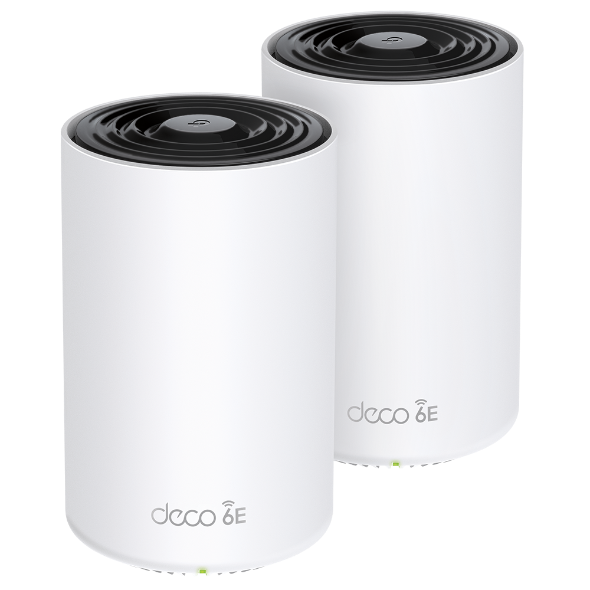
This is the same band-management problem that mesh WiFi systems are built to solve automatically; if you’re dealing with dead zones on top of band confusion, that comparison is worth reading before buying new hardware. As of 2026, newer routers also add a third band, 6GHz, on WiFi 6E and WiFi 7 hardware. 6GHz offers more bandwidth and no legacy congestion, since older devices can’t use it at all, but it has the shortest range of the three and almost no smart-home devices support it yet. For now it’s mainly useful for phones, laptops, streaming, and increasingly as a private backhaul link between mesh nodes. If you’re shopping for a mesh system for a heavily connected home, our mesh WiFi picks for 2026 cover systems that handle this band-splitting automatically.
Our Recommendation
Split your network so low-power, low-traffic devices, plugs, bulbs, sensors, thermostats, and most doorbells, connect explicitly to 2.4GHz, and give video and computing devices, cameras with HD streaming, TVs, streaming boxes, laptops, and phones, priority on 5GHz. Don’t chase 6GHz for smart-home purposes in 2026; almost nothing in that category supports it yet. It’s a good reason to buy a WiFi 6E or WiFi 7 router for faster everyday devices, not something your smart plugs need right now.
Frequently Asked Questions
Can I connect a 5GHz-only device to my 2.4GHz network?
No. A device only shows networks for the bands its radio supports, so a 5GHz-only device simply won’t see a 2.4GHz network in its WiFi list, and vice versa for 2.4GHz-only devices.
Why does my smart plug keep disconnecting from WiFi?
Usually because it’s on a combined SSID and the router keeps trying to steer it toward 5GHz, which it may not support well, or the 2.4GHz channel it landed on is congested by neighboring networks. Splitting your SSID into separate 2.4GHz and 5GHz names, or manually setting the 2.4GHz channel to 1, 6, or 11, usually fixes it.
Do I need a WiFi 6E or WiFi 7 router for my smart home devices?
Not for the devices themselves. Almost no smart plugs, bulbs, sensors, or doorbells support 6GHz as of 2026. A WiFi 6E or WiFi 7 router is still worth buying for faster laptops, phones, and streaming, and to keep that traffic off the bands your smart-home devices rely on.